



A Guide to Colour Blind Friendly Colours in Design.
Create accessible designs with our guide to colour blind friendly colours. Learn to choose effective palettes and test your work for inclusivity.
Colour Blind Friendly Design.
Share Via:
The most reliable colour blind friendly colours are blue #0072B2, orange #E69F00 and bluish green #009E73, three hues from the eight-colour Wong palette that stay apart from each other under every common form of colour vision deficiency, which is why RGBlind's 2026 chart-colour reference treats it as the scientific default.
That answer is the easy part. What most palette listicles leave out is that safe hues alone will not make a design accessible: choosing colour blind friendly colours and getting your contrast right are two different jobs. This guide covers both, plus the pairs to bin and the checks that catch problems before your users do. Both sit at the heart of good UI and UX design services.
Testing with real users is often how problems like these get caught, and our guide to user centred design explains how that method works.
Key Takeaways
- Start from a tested palette. Wong (also called Okabe-Ito) gives you eight hues that stay distinct across the common types of colour vision deficiency.
- Blue and orange is the safest everyday pairing, because red-green deficiency leaves blue perception largely intact.
- Colour blind friendly colours and sufficient contrast are two separate requirements. Aim for 4.5:1 on normal text as well as a safe palette, not instead of one.
- Colour should rarely carry meaning on its own. Add icons, labels or patterns so the message survives without it.
- Test with simulators and a contrast checker. Poor contrast remains the most common accessibility failure on the web.
Why Accessible Colour Matters More than You Think
Colour blindness rarely means seeing in black and white. For most people the brain struggles to separate certain shades, which turns a straightforward interaction into guesswork. The clinical term is colour vision deficiency, or CVD.
It is not a niche audience. Roughly 8% of men and 0.5% of women are affected by red-green colour blindness, and around 80% of all cases are red-green, according to WorldMetrics' verified 2026 data. That is about one man in twelve looking at your checkout page.
There is a commercial edge in the UK too. Warbox Creative reported in late 2025 that around 80% of UK adults with disabilities feel excluded by poor website accessibility, against disabled spending power worth roughly £274 billion a year.
The Main Types of Colour Vision Deficiency
Most cases fall into two red-green groups, and one of them dominates.
- Deuteranomaly and deuteranopia. Green perception is weakened or absent. Market.us Media's 2026 figures put deuteranomaly at roughly 6% of men, the most frequent form of all, with red-green types accounting for around 98% of cases. Reds, greens and browns blur together.
- Protanomaly and protanopia. Red perception is weakened or absent. Reds look dark and muted, while orange, green and brown drift towards each other.
Tritanopia, affecting blue and yellow perception, is far rarer. Design for the red-green majority and you cover most of the risk.
One man in twelve leaves this test knowing your checkout page is lying to him.
Ready-to-Use Colour Blind Friendly Colours, With Hex Codes
Here is the part most guides withhold. The Wong palette, sometimes credited as Okabe-Ito, is the widely adopted scientific standard for colour blind friendly colours, and three of its hues carry you a long way alone.

Those three come from the eight-hue Wong set documented by RGBlind. Need more categories? Take the remaining hues from that source rather than mixing your own, because the set is tuned as a whole.
For user interface design, Arch's own house palette applies the same logic in brand-friendly shades: a blue #005B9A for primary actions, a warm orange #F57C00 for warnings, near-black #212121 for text, off-white #F8F9FA for backgrounds, and a deep teal #00796B in place of a traditional green for success states. Teal carries enough blue to stay separable from red under deuteranopia, which plain green does not.
Colour blind friendly colours do not mean muted colours. They mean intentional ones.
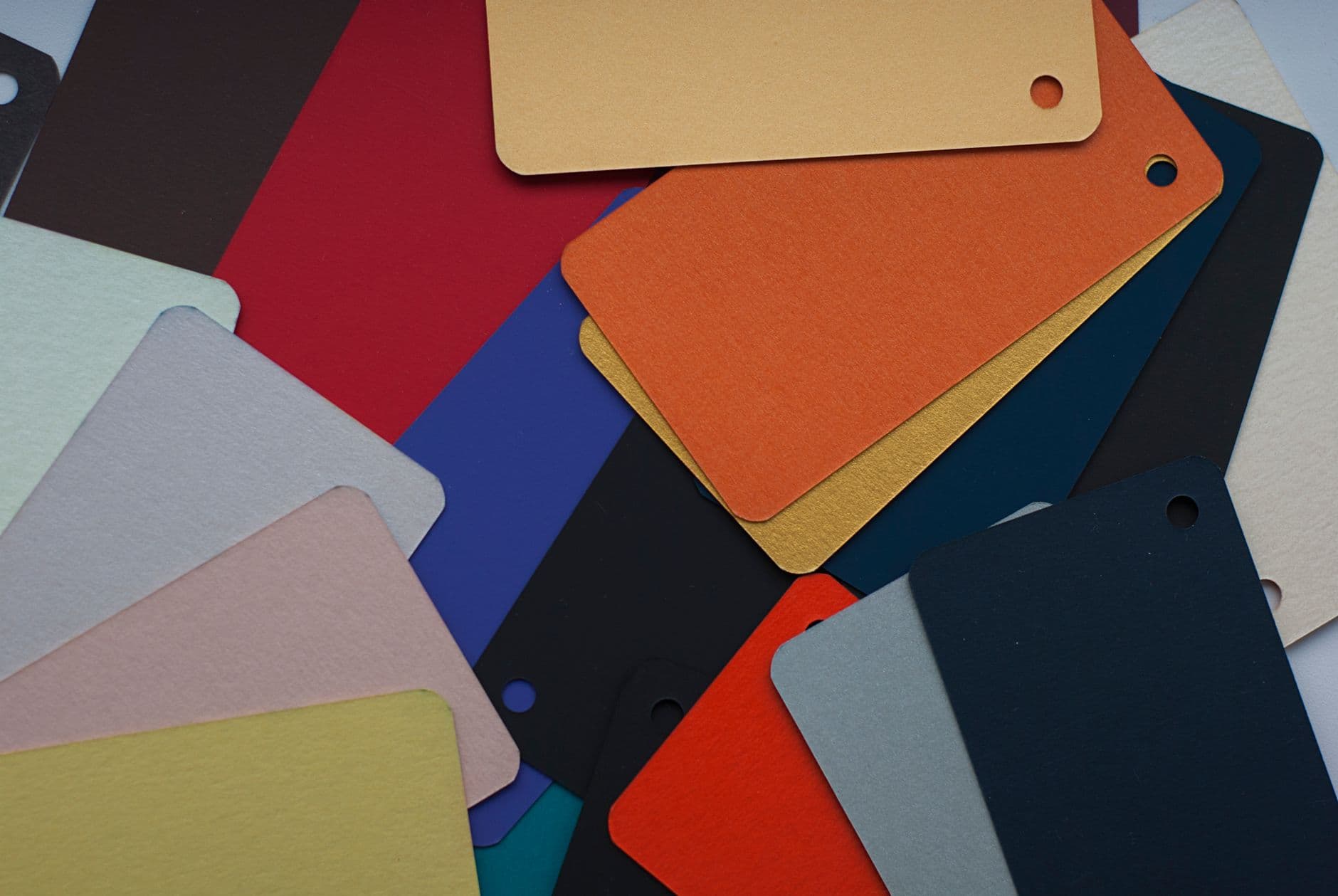
Blue and orange: doing the heavy lifting long before anyone measured it.
Are Blue and Orange Colour Blind Friendly?
Yes, and it is safe for the same reason the Wong palette leans on both. They sit far apart under every common form of CVD, and the genes behind red-green deficiency sit on the X chromosome without touching blue-yellow perception, so blue behaves as a stable anchor.
That makes the pair versatile as well as safe:
- Calls to action. An orange button on a dark blue field reads clearly for everyone.
- Data visualisation. Blue for one series, orange for another, no key required.
- Status. Blue for information, orange for warning, sidestepping red and green entirely.

Red means stop, green means go, and for some men both mean squint harder.
Colour Combinations to Avoid
Choosing colour blind friendly colours is half selection and half avoidance. Given that red-green types account for the overwhelming majority of cases, these pairs are the ones to keep away from anything load-bearing.
- Red and green. The classic failure. Both can collapse into a muddy brown.
- Green and brown. Frequently near-identical under deuteranopia.
- Green and blue. Risky when the two shades share a brightness level.
- Blue and purple. Too close on the spectrum to separate reliably.
- Green and grey. Blends together easily.
- Yellow and light green. Little separation once green perception drops.
You can still use red and green in your branding. The rule is narrower than people assume: do not let them be the only thing distinguishing one meaning from another.
Palette vs Contrast: Two Different Requirements
Picking colour blind friendly colours answers one question: "can these be told apart by hue?" Contrast answers a different one: "is this legible at all?"
AudioEye's 2026 palette guide makes the point plainly. A colour-blind-safe web palette should also meet WCAG's minimum contrast ratio of at least 4.5:1 for normal text. The two are separate requirements, and clearing one does nothing for the other. A pale orange on white is easily distinguishable from blue and still unreadable.
The industry keeps getting this wrong at scale. Insufficient contrast is the single most common accessibility failure on the web, present on roughly 83.6% of home pages tested, per Searchlab's 2026 round-up. A re-test of 100 EU websites a year after the European Accessibility Act took effect found poor contrast still affecting about 67% of sites, improved on the prior year but still the most widespread issue of all.
So run both checks. Choose the hue, then measure the ratio.

The ratio does not care how nice the shade looked in the mood board.
Why Colour Blind Friendly Colours Alone Are Not Enough
Even a well-chosen palette leaves a gap, because colour is one channel and some users are not receiving it cleanly. Every meaningful state needs a second cue. This is the crux of designing for accessibility.
- Errors and success. Pair the red border with a cross icon, the green message with a tick. The icon does the work when the colour cannot.
- Links. Underline them, or change the font weight on hover and focus. A colour shift alone can be invisible.
- Form focus. Apply a distinct border, not a faint tint.
- Charts. Use patterns such as stripes or dots per series, and label lines and slices directly so readers do not need a key.
There is a compliance dimension as well. UK public sector websites and apps must meet WCAG 2.2 Level AA, and the Equality Act 2010 requires reasonable adjustments so that colour-dependent design does not put disabled users at a substantial disadvantage. Yudu's 2026 briefing sets out what that means in practice. Accessibility-first products like Recite Me are built around exactly these rules.
The same principle holds in code. Define your colour blind friendly colours once as CSS custom properties, so a contrast fix is a one-line change rather than a hunt through hard-coded hex values. For charts, SVG pattern fills separate the series visually, and an aria-label such as "Sales in Q4: £50,000" carries the same information to a screen reader, which sees no pattern at all, the same techniques behind the British Dyslexia Association app.

Drain the colour out and the design confesses everything it was hiding behind.
How to Test Your Designs for Colour Blindness
Testing moves you from hoping a design works to knowing it does. Three layers cover it, though none of them replaces discovery work with real users. For that discovery work, twelve UX research methods and techniques are set out in our other guide.
In your design tool. Stark bundles a contrast checker and a CVD simulator into Figma, Sketch and Adobe XD. Colour Blind for Figma renders your file through eight types of deficiency, and Able gives live contrast feedback as you adjust a swatch. These are the tools the designers who work on our apps keep open.
In the browser. Static files hide the states that matter, so check the live build. WAVE overlays contrast and ARIA issues on the rendered page, and Coblis simulates CVD on a screenshot. Hover states, error banners and notifications are where problems hide.
Greyscale. Strip the colour out and look at the screen. If two things become indistinguishable, colour was doing work it should not have been doing alone. It takes seconds and catches the biggest category of mistake.
Frequently Asked Questions
What Colours Are Colour Blind Friendly?
Blue, orange and bluish green are the most dependable colour blind friendly colours, taken from the eight-hue Wong palette: #0072B2, #E69F00 and #009E73. Blue anchors best because red-green deficiency, around 80% of cases, leaves blue perception largely intact. Pair them with sufficient contrast and a non-colour cue.
What Are the Best Three Colour Blind Friendly Colours to Use Together?
Blue #0072B2, orange #E69F00 and bluish green #009E73. The Wong palette is built so its hues stay separable under deuteranopia, protanopia and tritanopia, so you are not guessing at whether three arbitrary shades survive. For a fourth, take the next hue from the same set.
Is a Colour Blind Friendly Palette the Same as Good Contrast?
No, and conflating them is the most common mistake in accessible design. A palette answers whether two colours can be told apart by hue. Contrast measures whether text is legible against its background, with WCAG setting 4.5:1 for normal text. A design can pass one and fail the other.
Can I Still Use Red and Green in My Brand?
Yes. The problem is not the colours, it is relying on them alone to carry meaning. If red signals an error and green signals success, add an icon or label to each so the distinction survives for someone who cannot separate the hues.
How Do I Make Charts and Graphs Accessible?
Use a tested categorical palette, then double-encode. Give each series a pattern such as stripes or dots as well as a colour, label lines and slices directly instead of relying on a legend, and add ARIA labels so screen readers get the numbers. Recording those palette decisions as tokens in a shared design system keeps them consistent as the product grows.
How Do I Test a Design for Colour Blindness?
Simulate, measure, then strip. Run the design through a CVD simulator such as Stark or Coblis, measure every text and background pair against 4.5:1 with a contrast checker, then view the screen in greyscale. Anything ambiguous there depends on colour alone.
Do Accessibility Rules Require Colour Blind Friendly Colours?
In the UK, public sector websites and apps must meet WCAG 2.2 Level AA, which includes contrast minimums and a rule against using colour as the only visual means of conveying information. Private organisations sit under the Equality Act 2010's duty to make reasonable adjustments.
Start With the Palette, Then Prove It
Take the three Wong hues, set them as CSS variables, and run your existing screens through a simulator and a contrast checker this week. Colour blind friendly colours cost you an afternoon now and a redesign later. There is a strong case for building accessibility in from the start. If you would rather have accessibility built in from the first wireframe than retrofitted after launch, the team at Arch works that way by default.
About the Author
Hamish Kerry is the Marketing Manager at Arch, where he has spent the past six years shaping how digital products are positioned, launched, and understood. He has over eight years in the tech industry and a deep understanding of accessible design and user-centred development, with a focus on delivering real impact to end users. His interests include AI, app and web development, and the potential of emerging technologies. Outside campaigns, he keeps a close eye on how tech can drive meaningful change.
You can catch up with Hamish on LinkedIn
Sources
- Digital Accessibility Statistics 2026 by Searchlab, published 17 March 2026.
- One Year After the EAA: Re-Testing 100 EU Websites by Webyes, published 30 June 2026.
- Color Blind Friendly Chart Colors & Palettes (2026) by RGBlind, published 20 December 2025.
- Color Blind Statistics | Verified 2026 Data by WorldMetrics, published 12 February 2026.
- Colorblind-Friendly Palettes for Web Design: Colors and Hex Codes by AudioEye, published 13 April 2026.
- Color Blindness Statistics By Vision Deficiency (2026) by Market.us Media, published 3 February 2026.
- State of Accessibility: UK Websites Need Improvement in 2026 by Warbox Creative, published 25 November 2025.
- What to Expect from UK Digital Accessibility Requirements in 2026 by Yudu, published 7 January 2026.